Login and access
What you will learn
Section titled “What you will learn”Sign in on Vendor Desktop and know which permissions each Cashier screen needs.
Before you start
Section titled “Before you start”- An active employee account with
poswrite for selling (or legacyorderwrite). - Vendor Desktop installed on the lane PC.
- Network to the LionPOS API (offline selling still uses desktop local cache — see Offline and local data).
Sign in (Vendor Desktop) — primary
Section titled “Sign in (Vendor Desktop) — primary”- Launch Vendor Desktop on the checkout PC.
- The app shows Cashier login (employee sign-in only — not owner dashboard login).
- Enter email and password → Sign in.
- You land in fullscreen
/point-of-sale/*(typically Sale). There is no vendor dashboard sidebar.
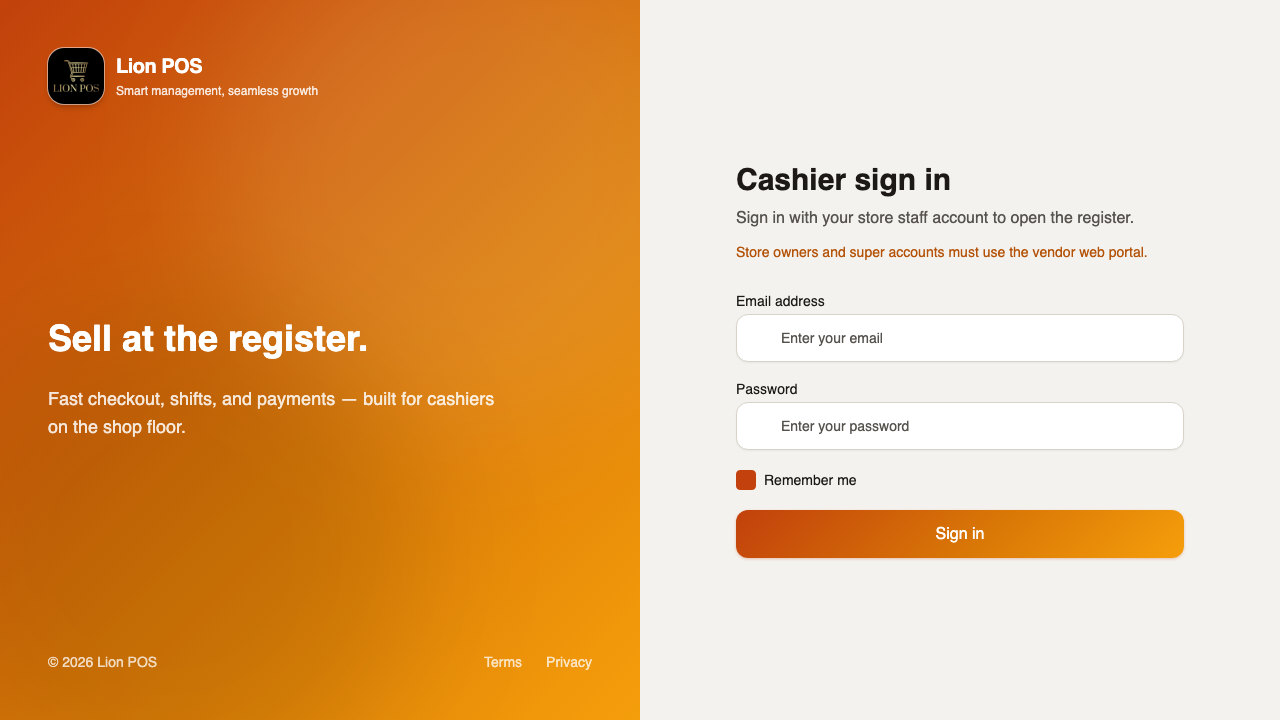
Employee vs owner on desktop
Section titled “Employee vs owner on desktop”| Account | Desktop behavior |
|---|---|
| Employee (cashier) | Normal flow — POS workspace after login |
| Owner on Cashier login | Session may be cleared; use employee credentials at the lane, or manage the store from vendor web dashboard |
Forgot password: link on the login screen → /forgot-password (employee reset flow).
Sign in (browser) — optional
Section titled “Sign in (browser) — optional”For training or owner spot-checks only:
- Open vendor web → Staff:
/loginor Owner:/vendor-login. - After sign-in, navigate to
/point-of-sale/sale(full vendor app, not the desktop shell). - Hardware, offline outbox, and local SQLite features may be unavailable or limited.
Module requirements
Section titled “Module requirements”| Screen | Module | Level |
|---|---|---|
| Sale | pos or order | Write |
| Items | pos or product | Read |
| Customers | customer | Read |
| Orders / Returns | pos or order | Read |
| Report | pos, finance, or order | Read |
| Settings | pos, settings, or order | Read (hardware may need write) |
If access is denied, you are redirected to Access denied or login. See FAQ — access & roles.
Expected result
Section titled “Expected result”- Session is active on Vendor Desktop; store selector appears in the Cashier top bar.
- Sale tab is available when you have write permission.
Common issues
Section titled “Common issues”| Symptom | What to do |
|---|---|
| Redirect to login after opening Sale | Re-sign in; check token expiry |
| Access denied on Sale | Owner adds pos write on your role (via dashboard web) |
| No Customers tab | Role needs customer read |
| Owner cannot stay signed in on desktop | Use an employee account at the lane |