Cash sale
What you will learn
Section titled “What you will learn”Complete a cash sale from empty cart to paid order.
Before you start
Section titled “Before you start”- Vendor Desktop on the lane PC (First-open checklist done).
poswrite permission.
Step 1 — Open Sale
Section titled “Step 1 — Open Sale”- Go to Sale (
/point-of-sale/sale). - Confirm store (and lane if required).
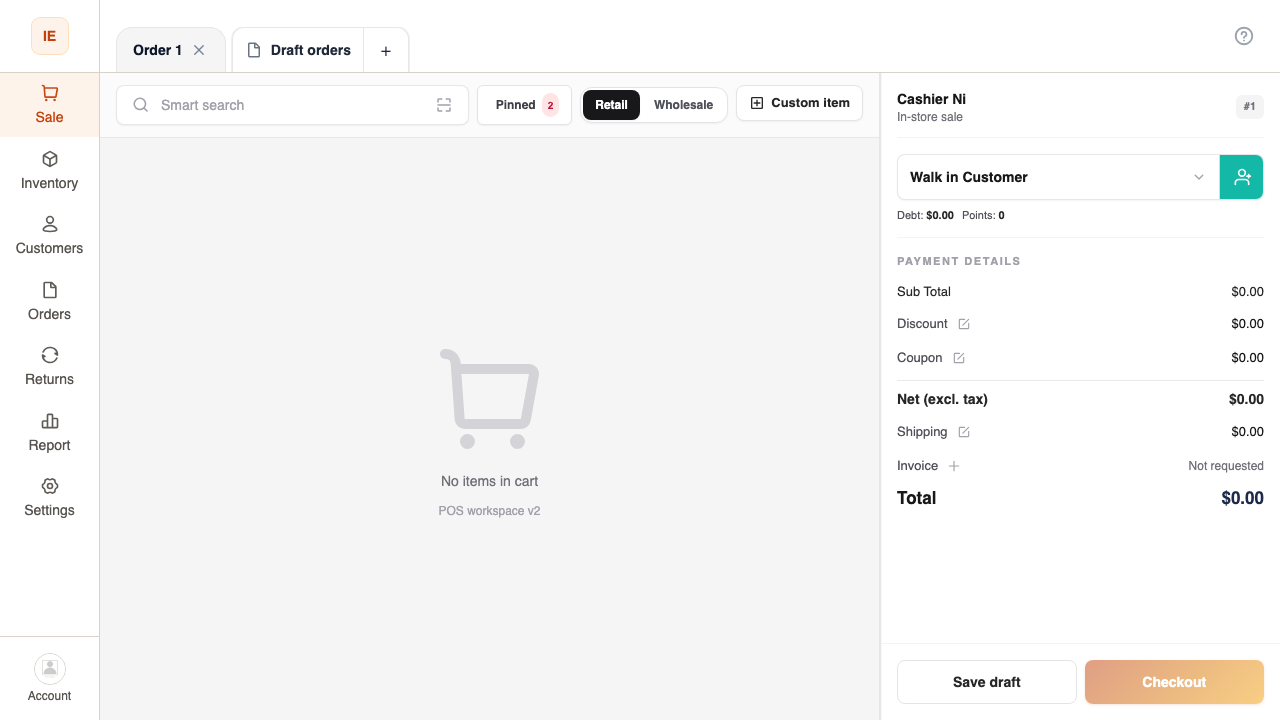
Step 2 — Add items
Section titled “Step 2 — Add items”Choose one method:
- Tap a product on the catalog grid.
- Search by name or SKU.
- Scan barcode (Barcode scan).
- Add a custom line (ad-hoc name + price) when allowed.
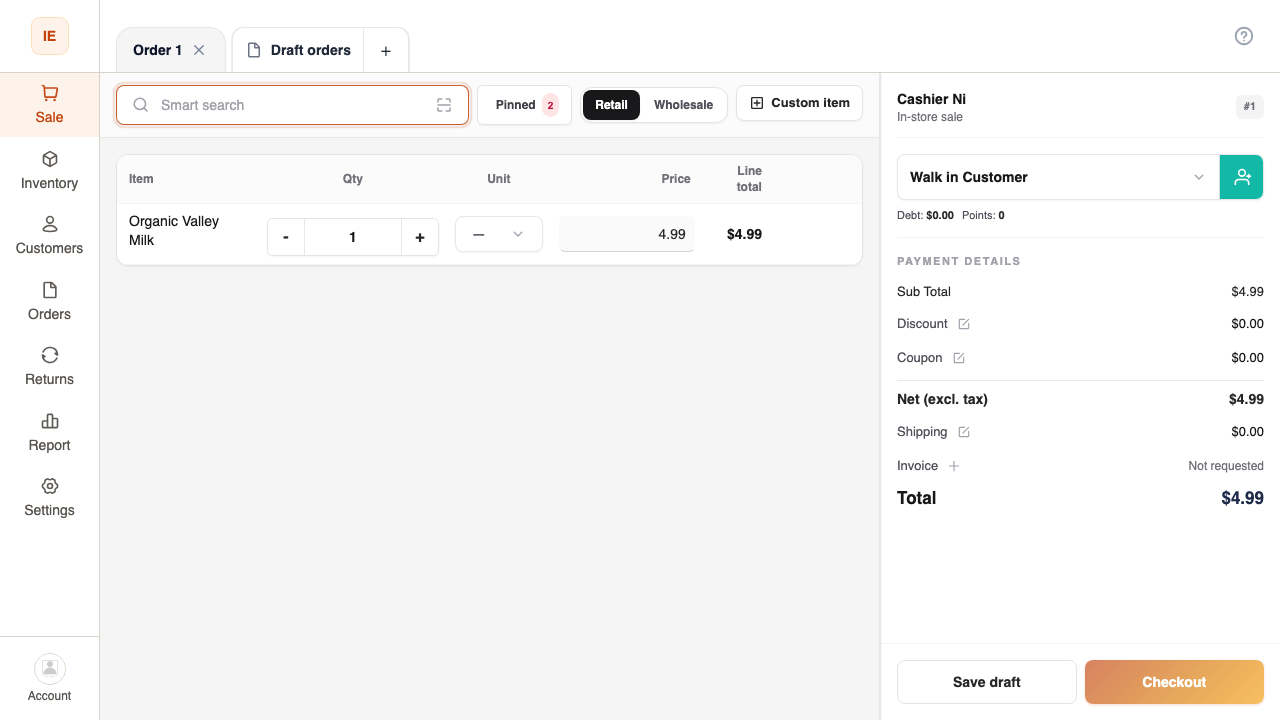
Step 3 — Review cart
Section titled “Step 3 — Review cart”- Adjust quantity on each line.
- Remove lines if needed.
- Check subtotal and tax/discount totals.
Step 4 — Pay with cash
Section titled “Step 4 — Pay with cash”- Open Payment / checkout.
- Select Cash.
- Enter amount received (or exact amount).
- Confirm Place order / Pay.
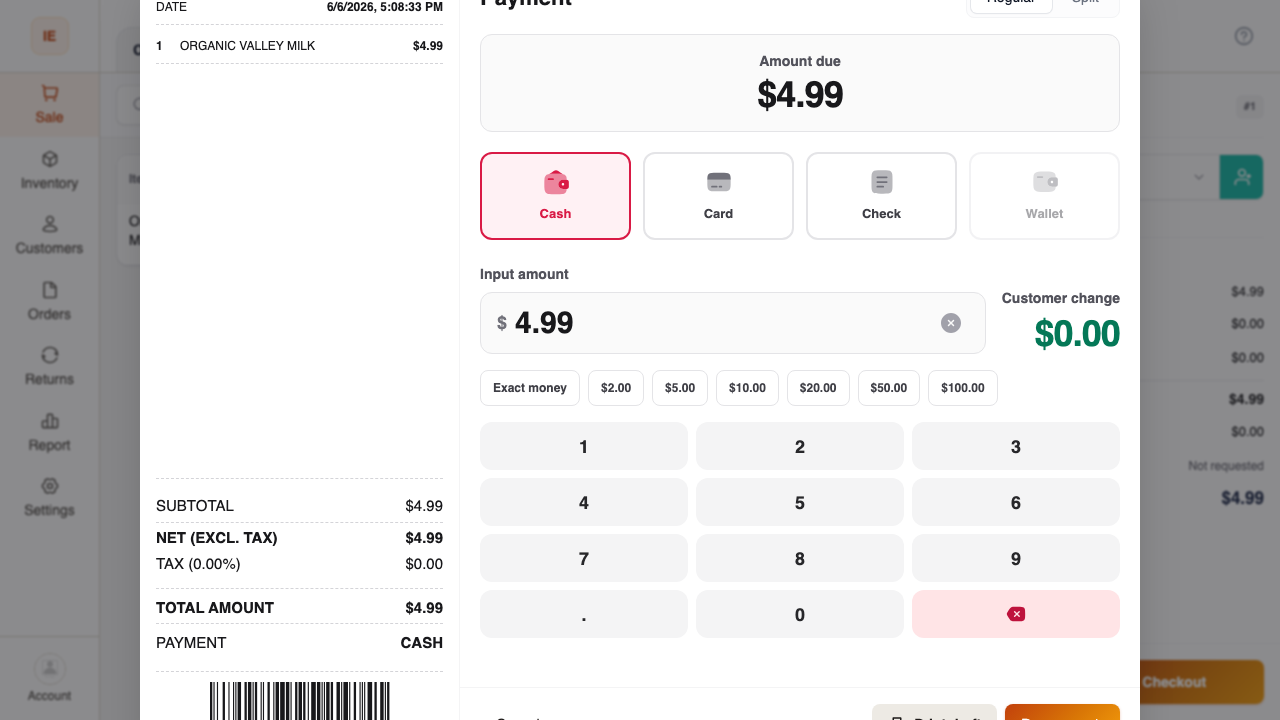
Step 5 — Receipt
Section titled “Step 5 — Receipt”- If auto-print is on, receipt prints to configured printers.
- Otherwise use View receipt / print dialog.
Expected result
Section titled “Expected result”- Order status completed (or store equivalent).
- Change calculated correctly for cash.
- Order visible under Orders.
Common issues
Section titled “Common issues”| Symptom | See |
|---|---|
| Stock error on add | FAQ — checkout |
| Lane banner blocks pay | Store, lane & shift |
Test IDs: TC-PS2-010, TC-PS2-011 — Point of Sale v2 test cases